微信小程序实现登录页面
本文实例为大家分享了微信小程序实现登录页面的具体代码,供大家参考,具体内容如下
实现在进入微信小程序首页前的登录验证页面,这里有两种方法,但其实原理都是一样的。
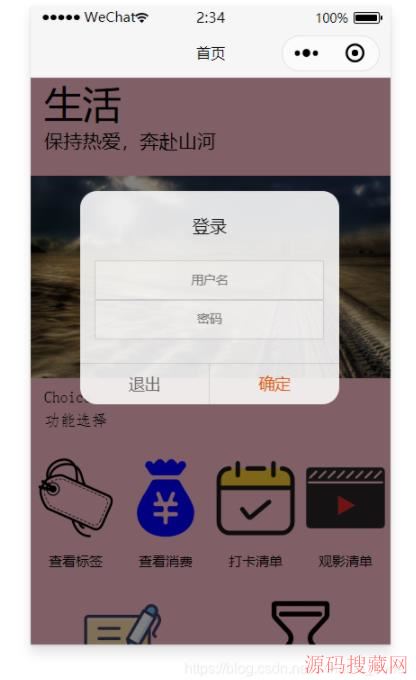
1. 在首页中加入一个弹窗作为登录窗口,效果如下图:

(1)index.wxml
登录窗口代码如下:
<view class="modal-mask" bindtap="hideModal" catchtouchmove="preventTouchMove" wx:if="{{!hiddenmodalput}}"></view>
<view class="modal-dialog" wx:if="{{!hiddenmodalput}}" catchtouchmove="preventTouchMove">
 <view class="modal-title">{{tip}}</view>
 <view class="modal-content">
  <view class="modal-input">
   <input placeholder-class="input-holder" type="text" maxlength="20" bindinput="inputUsername" class="input" placeholder="用户名" value="{{username}}">
   </input>
  </view>
  <view class="modal-input">
   <input placeholder-class="input-holder" type="text" maxlength="20" bindinput="inputPassword" class="input" placeholder="密码" value="{{password}}">
   </input>
  </view>
 </view>
 <view class="modal-footer">
  <navigator class="btn-cancel" target="miniProgram" open-type="exit">
   退出
  </navigator>
  <!-- <view class="btn-cancel" bindtap="cancel" data-status="cancel">取消</view> -->
  <view class="btn-confirm" bindtap="confirm" data-status="confirm">确定</view>
 </view>
</view>
(2)index.js
在onload方法中判断当前的登录状态,这里我用了简单的 getStorage 来保存登录信息,hiddenmodalput控制登录窗口是否显示,这样就可以实现简单的登录页面,hideTabBar是用来隐藏底部tab栏按键。
 /**
 * 生命周期函数--监听页面加载
 */
 onLoad: function (options) {
  let that = this;
  wx.getStorage({
   key: 'username',
   success (res) {
    console.log(res.data);
    that.setData({
     hiddenmodalput:true,
    })
   },
   fail (res) {
    console.log(res);
    that.setData({
     hiddenmodalput:false,
    })
    wx.hideTabBar({
     animation: true,
     success: (res) => {},
     fail: (res) => {},
     complete: (res) => {},
    })
   }
  })
 },
2.新建一个登录页面
(1)在首页onload中进行登录转态验证,如果为未登录状态,则可以使用wx.navigateTo跳转到登录页面
(2)在登录页面中处理登录的相关逻辑,也可以实现相同的效果。
以上就是本文的全部内容,希望对大家的学习有所帮助,也希望大家多多支持源码搜藏网。
【JQ】无限滚动条-jquery.infinitescroll.j
query多选下拉框插件 jquery-multiselect(
手机站jQuery自动完成插件autoComplete.js
js/jQuery教程阅读排行
-

【JQ】无限滚动条-jquery.infinitescroll.js使用说明
2014-05-05
-
query多选下拉框插件 jquery-multiselect(修改)
2014-06-15
-
2016-06-15
-
毕向东Html、css、JavaScript视频教程(黑马程序员课程)
2013-04-25
-

手机站jQuery自动完成插件autoComplete.js
2016-02-25
-
2012-08-23
-
2013-04-25
-
2013-04-25
最新文章
-
2022-05-22
-

2022-05-22
-

2022-05-22
-

2022-05-21
-

-
2022-05-21
-

Vue,vant-ui使用van-uploader实现头像上传功能
2022-05-21
-

vue3.0,移动端二次封装van-uploader实现上传图片(vant组件库)
2022-05-21
热门源码