微信小程序实现下拉筛选功能
最近开发应项目需求实现一个类似与贝壳找房里面的下拉筛选功能,在这里分享给有同样需求的大家,互相学习学习

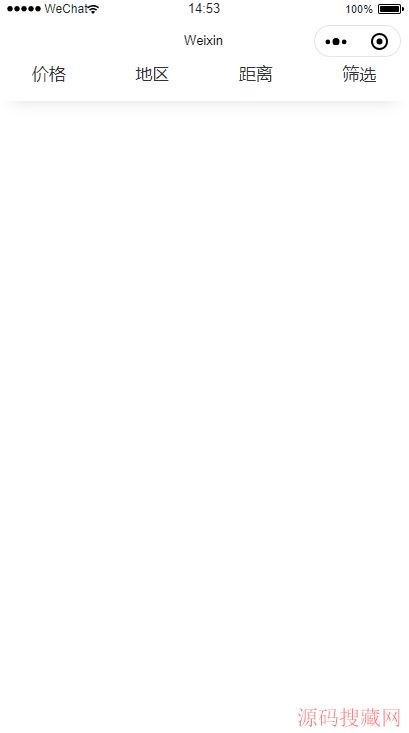
这是主要功能实现,我把它封装成了组件,在对应的地方使用,就可以实现贝壳找房相同的效果
好了,废话不多说,直接上代码吧
wxml:
<!--筛选栏-->
<view class="cxj-contents">
 <view class="cxj-menu">
  <view class="flex-view{{item.active' active':''}}" wx:for="{{tabTxt}}" wx:key="" data-index="{{index}}"
   bindtap="filterTab" wx:key="id">
   <text class="flex_nav {{item.active' active':''}}">{{item.text}}</text>
   <icon class="iconfont {{item.active' iconshanglaxiala-':'iconshanglaxiala-1'}}" />
  </view>
 </view>
</view>

<!--条件选项栏-->
<view class="cxj-tab-layout" hidden="{{!item.active}}" wx:for="{{tabTxt}}"
 wx:for-index="index1" wx:for-item="item" wx:key="id" >
 <scroll-view scroll-y class="scroll" style="height: calc(100vh - {{navH+45}}px);">
  <view class="cxj-tap-wrap">
   <view>
    <view wx:for="{{item.child}}" wx:for-item="item_child" wx:key="id" wx:for-index="index2">
     <view class="title">{{item_child.title}}:</view>
     <view class="cxj-tap-main">
      <view class="navs {{item_childtype.selected==true'active':''}}" wx:for="{{item_child.childType}}"
       wx:for-item="item_childtype" wx:key="id" data-id="{{item_childtype.id}}" data-index="0"
       data-txt="{{item_childtype.text}}" wx:for-index="index3">
       <view bindtap="clickTabChild" data-index1="{{index1}}" data-index2="{{index2}}" data-index3="{{index3}}">{{item_childtype.text}}</view>
      </view>
     </view>
    </view>
   </view>
   <view class="select_btn">
    <button class="clear" bindtap="filterClears">清空条件</button>
    <button class="submit" bindtap="filterSubmit">确定</button>
   </view>
  </view>
  <!-- <view class="hidden" bindtap="closefilterTab"></view> -->
 </scroll-view>
</view>
wxss:
@import "../../style/iconfont.wxss";
/* 筛选栏 */
.cxj-contents{
 position: sticky;
 width: 100%;
 height: 100rpx;
 z-index: 1003;
 /* box-shadow: 0px 15px 15px -15px rgba(200,200,200,0.6); */
 overflow: hidden;
 margin-top: -30rpx;
}
.cxj-menu {
 background-color: #fff;
 width: 100%;
 height: 100%;
 display: flex;
 flex-wrap: nowrap;
 font-size: 32rpx;
}
.cxj-menu .iconshanglaxiala-{
 color: #FF6F00
}
.cxj-menu .iconshanglaxiala-1{
 color: #333
}

.cxj-menu .flex_nav.active {color: #FF6F00;}

.flex-view {
 -webkit-box-flex: 1;
 -webkit-flex: 1;
 -ms-flex: 1;
 flex: 1;
 overflow: hidden;
 display: block;
 text-align: center;
 line-height: 100rpx;
 }
.flex_nav{
 font-size: 32rpx;
 color: #333
 }
.cxj-icon {
 width: 24rpx;
 height: 24rpx;
 vertical-align: middle;
 margin-left: 5px;
}

/* 筛选内容 */
.cxj-content {
 width: 100%;
 font-size: 28rpx;
 z-index: 1009;
}
.cxj-content-li {
 line-height: 60rpx;
 text-align: center;
}
.cxj-tab-layout {
 width: 100%;
 overflow: hidden;
 z-index: 1009;
 /* height: 100%; */
 /* padding-top: 20rpx; */
 background-color: rgba(000,000,000,.5);
 /* position: fixed; */
}
.hidden{
 background-color: rgba(000,000,000,.5);
 height: 100%;
 z-index: 9999;
 width: 100%;
}
.cxj-tab-layout .navs.active { background: #FFE5D9 !important;}

.cxj-tap-wrap{
 padding: 0 30rpx;
 background: #fff;
 padding-bottom: 40rpx
}
.cxj-tap-main{
 display: flex;
 flex-flow: row wrap;
 justify-content: space-between;
 box-sizing: border-box;
}
.title{
 margin-bottom: 20rpx
}
.scroll{
/* height: calc(100vh - 110px); */
}
.cxj-tab-layout .navs {
 height: 88rpx;
 line-height: 88rpx;
 text-align: center;
 font-size: 32rpx;
 font-weight: 300;
 background: #F3F3F3;
 border-radius: 6rpx;
 color: #333333;
 margin-bottom: 24rpx;
 flex: 0 0 31%;
}
.cxj-tap-main:after {
  content: "";
  width:31%;
}

/* 按钮 */
.select_btn{
  display: flex;
  justify-content: space-between;
  align-items: center;
}
.select_btn .clear{
  width: 31%;
  font-size: 30rpx;
  font-weight: 300;
  border: 1px solid #FF8751;
  border-radius: 6rpx;
  background-color: #fff;
  color: #FF8751;
  height: 88rpx;
  line-height: 54rpx;
  margin: 0;
}
.select_btn .submit{
  width: 66%;
  font-size: 30rpx;
  font-weight: 300;
  background-color: #FF8751;
  color: #fff;
  height: 88rpx;
  line-height: 60rpx;
  margin: 0;
}
js:
// 引入数据
const tabTxtArr = require('../../utils/filtrate.js');
Page({
 /**
 * 页面的初始数据
 */
 data: {
  tabTxt: [],
  searchParam: [],
 },

 //切换导航按钮
 filterTab(e) {
  var that = this;
  var data = JSON.parse(JSON.stringify(that.data.tabTxt));
  var index = e.currentTarget.dataset.index;
  var newTabTxt = data.map(function (e) {
   e.active = false;
   return e;
  });
  newTabTxt[index].active = !that.data.tabTxt[index].active;
  this.setData({
   tabTxt: data
  })
 },

 // 点击导航按钮的条件
 clickTabChild(e) {
  // console.log(e.currentTarget.dataset)
  let tabTxt = this.data.tabTxt;
  let index1 = e.currentTarget.dataset.index1;
  let index2 = e.currentTarget.dataset.index2;
  let index3 = e.currentTarget.dataset.index3;
  // console.log(index2)
  // console.log(tabTxt[index1].child[index2].childType[index3].selected);
  //1.在改变某个子按钮之前先把该子按钮组的所有选中状态selected改成false,
  tabTxt[index1].child[index2].childType.forEach(e =>{
   e.selected = false
  })
  //2.之后再把当前点击的按钮的状态改为true
  tabTxt[index1].child[index2].childType[index3].selected = !tabTxt[index1].child[index2].childType[index3].selected;
  this.setData({
   tabTxt: tabTxt
  })
  // console.log(tabTxt)
 },

 // 清空条件
 filterClears(e) {
  var that = this;
  let tabTxt = that.data.tabTxt;
  tabTxt.forEach(e1 => {
   console.log(e1)
   e1.child.forEach(e2 => {
    // console.log(e2)
    e2.childType.forEach(e3 => {
     console.log(e3)
     if(e1.active){
       e3.selected = false
     }
    })
   })
  })
  this.setData({
   tabTxt: tabTxt
  })
 },
 // 确定按钮
 filterSubmit(e) {
  var that = this;
  // console.log(that.data.searchParam);
  let tabTxt = this.data.tabTxt;
  let selectedTextArr = [];
  tabTxt.forEach(e1 => {
   // console.log(e1)
   e1.active = false; //关闭抽屉
   e1.child.forEach(e2 => {
    // console.log(e2)
    e2.childType.forEach(e3 => {
     // console.log(e3)
     if(e3.selected){
      //选中的加载在一个数组中
      selectedTextArr.push(e3.text)
     }
    })
   })
  })
  this.setData({
   tabTxt:tabTxt
  })
  console.log(selectedTextArr)
 },
 /**
 * 生命周期函数--监听页面加载
 */
 onLoad: function (options) {
  let that = this;
  that.setData({
   tabTxt: tabTxtArr.tabTxt,
  })
 },
})
以上就是本文的全部内容,希望对大家的学习有所帮助,也希望大家多多支持源码搜藏网。
【JQ】无限滚动条-jquery.infinitescroll.j
query多选下拉框插件 jquery-multiselect(
手机站jQuery自动完成插件autoComplete.js
js/jQuery教程阅读排行
-

【JQ】无限滚动条-jquery.infinitescroll.js使用说明
2014-05-05
-
query多选下拉框插件 jquery-multiselect(修改)
2014-06-15
-
2016-06-15
-
毕向东Html、css、JavaScript视频教程(黑马程序员课程)
2013-04-25
-

手机站jQuery自动完成插件autoComplete.js
2016-02-25
-
2012-08-23
-
2013-04-25
-
2013-04-25
最新文章
-
2022-05-22
-

2022-05-22
-

2022-05-21
-

-
2022-05-21
-

Vue,vant-ui使用van-uploader实现头像上传功能
2022-05-21
-

vue3.0,移动端二次封装van-uploader实现上传图片(vant组件库)
2022-05-21
-

2022-05-21
热门源码